A separate SSH client
Tabs, split panes and broadcast input
Tabs share one connection, with up to four panes per server.
The all-in-one workspace for sysadmins and DevOps: SSH terminals, SFTP, FTP and S3, fleet health, updates, Windows and Remote Desktop — with a free AI that reads your terminal.
ops@web-01:~$ df -h / | tail -1
/dev/sda1 80G 46G 31G 60% /
ops@web-01:~$ systemctl is-active nginx php-fpm
active
active
ops@web-01:~$ sudo nginx -t
nginx: configuration file test is successful
ops@web-01:~$
ops@web-01:~$ journalctl -fu nginx
16:02:11 systemd[1]: Reloading nginx…
16:02:11 systemd[1]: Reloaded nginx.
16:04:37 nginx[812]: signal 1 (SIGHUP)
16:04:52 nginx[812]: upstream timed out
16:05:03 nginx[812]: reconfiguring
IIS running, last reboot 4 days ago.
An SSH client, an SFTP client, a remote desktop client, a dashboard you check by hand, a folder of patch scripts and a chatbot tab. ShellMind does each of those jobs in one window, for free.
A separate SSH client
Tabs share one connection, with up to four panes per server.
A separate SFTP, FTP or S3 client
SFTP, FTP/FTPS and S3, streamed transfers and a remote editor.
A separate remote desktop client
A built-in client with pinned certificates, also through jump hosts.
Logging in just to check
Background checks, alerts and desktop notifications.
A folder of patch scripts
apt, dnf, yum, zypper, apk and pacman, in safe batches.
Pasting logs into a chatbot
MiniMax M3 included. No API key, no account.
Six tools, one window. Total cost: zero. No account, no Pro tier, no trial — the AI included.
Download freeSwitching is painless: bring your ~/.ssh/config, your keys and your agent, and your hosts show up with their jump hosts already wired.
Any number of terminal tabs per server on one pooled SSH connection, and up to four panes side by side. Drag tabs between panes; the layout is remembered per server.
~/.ssh/configHosts, ProxyJump chains, key files and IdentityAgent come in with one click. Export and import the whole setup as JSON — never with secrets.
Password, private key with passphrase, or your agent: ssh-agent, the Windows OpenSSH agent and Pageant. One identity can serve many servers; agent forwarding is per server and off by default.
Generate ed25519 keys and install a public key on many servers, checked by signing in with it. Rotate safely: the old key comes off the servers once every one of them accepts the new one.
Chain ProxyJump hosts for everything that connects. Save local port forwards per server and start them on demand or with the app; they listen on loopback unless you confirm otherwise.
Trust on first use, pinned per host, port and jump route. A changed key stops the connection and shows both fingerprints, and the known hosts manager shows which servers use each key.
A file manager next to the terminal: drag-and-drop uploads, bulk download and delete, transfers streamed to disk, and a remote editor with syntax highlighting and conflict detection.
Ctrl+K jumps to any server, tab or action. Snippets with {{variables}} run in a terminal or on many servers, and secret variables are masked everywhere.
Your system shell (PowerShell on Windows, your login shell elsewhere) through a real PTY, or a scoped console for az, aws, gcloud, kubectl or docker: a dedicated prompt that only runs that tool, with history, Tab completion and quick commands. Or any program you configure, such as wsl -d Ubuntu.
Every tool has a shortcut and the palette finds the rest. On macOS, Ctrl is Cmd.
Split a server into panes, type into several terminals at once, or hand a command to a background job that rolls it out across the fleet — with a guard at every step.
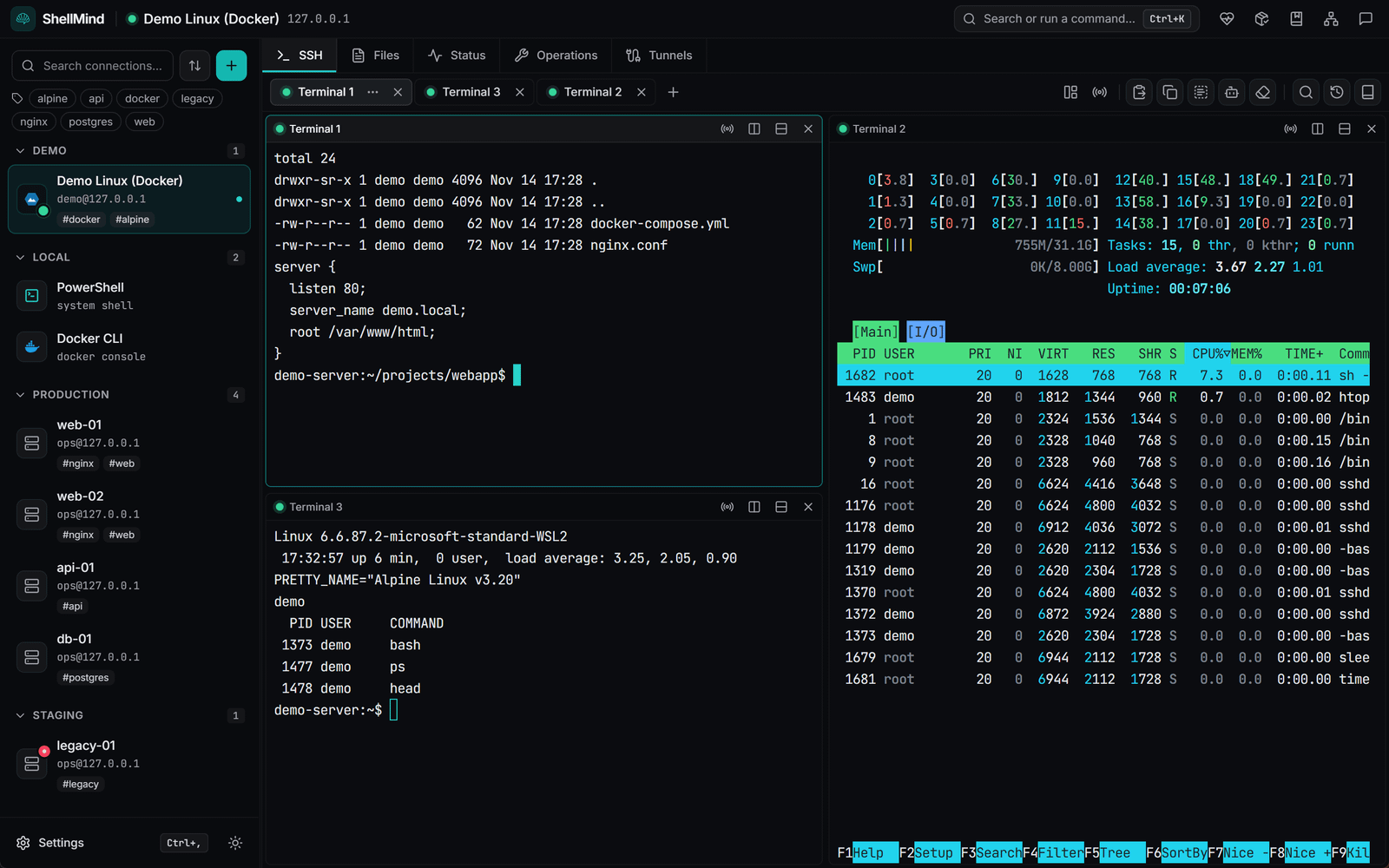
Up to four per server, split right or down, resized with the mouse or the keyboard.
CtrlShiftD right · CtrlAltShiftD down
One line typed into several terminals, of one server or many. A line typed at a password prompt never leaves its terminal, terminals at a password prompt or in a full-screen program are skipped, and pastes and destructive commands ask first.
CtrlShiftB
A command or snippet on up to 200 servers as a background job: all at once, in rolling batches, or a canary first. Pause, resume, cancel or set a failure limit, then run it again where it failed.
CtrlShiftE
uname -r
Finished
6.1.0-28-amd64
5.10.0-33-amd64
ssh: connect to host legacy-03 port 22: Connection timed out
Host names, dates and PIDs are normalized before grouping. Export to JSON, CSV or text; every run lands in the audit log.
~/.ssh/config. Your hosts are one click away.Free and open source for Windows, macOS and Linux. No account, no license key — and the AI assistant works out of the box.
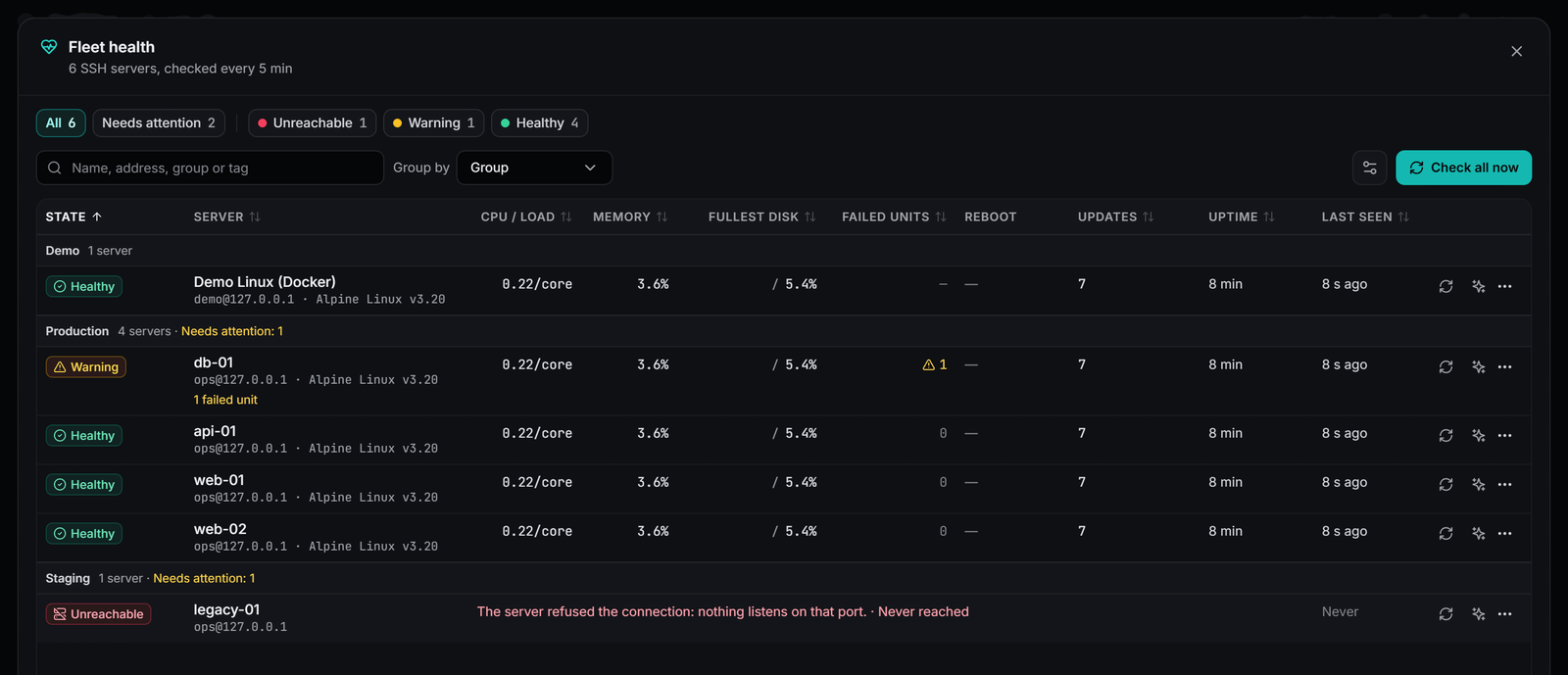
ShellMind checks your SSH servers in the background and reads their package managers, so failed units, full disks, pending updates and pending reboots come to you.
One row per SSH server: state, CPU and load, memory, fullest disk, failed units, pending reboot, pending updates and uptime, grouped by group or tag and sorted by urgency.
Pending and security updates and pending reboots for every SSH server, read from the package managers' caches without refreshing them.
sudo -n only: ShellMind never types a sudo password.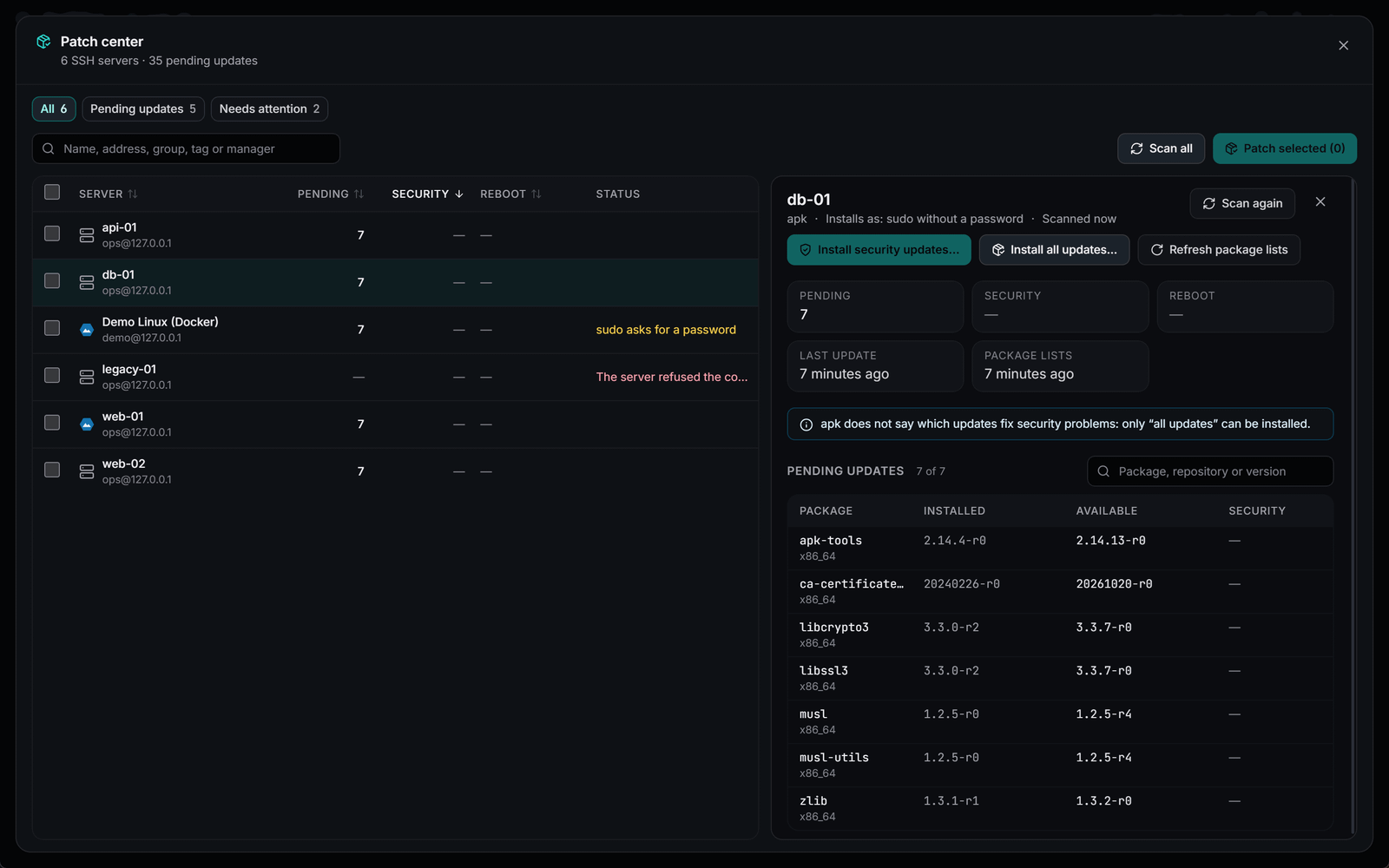
Usage explorer, largest files, deleted files still held open, and cleanups with a preview of what they free: journal, package caches, rotated logs, Docker images and more.
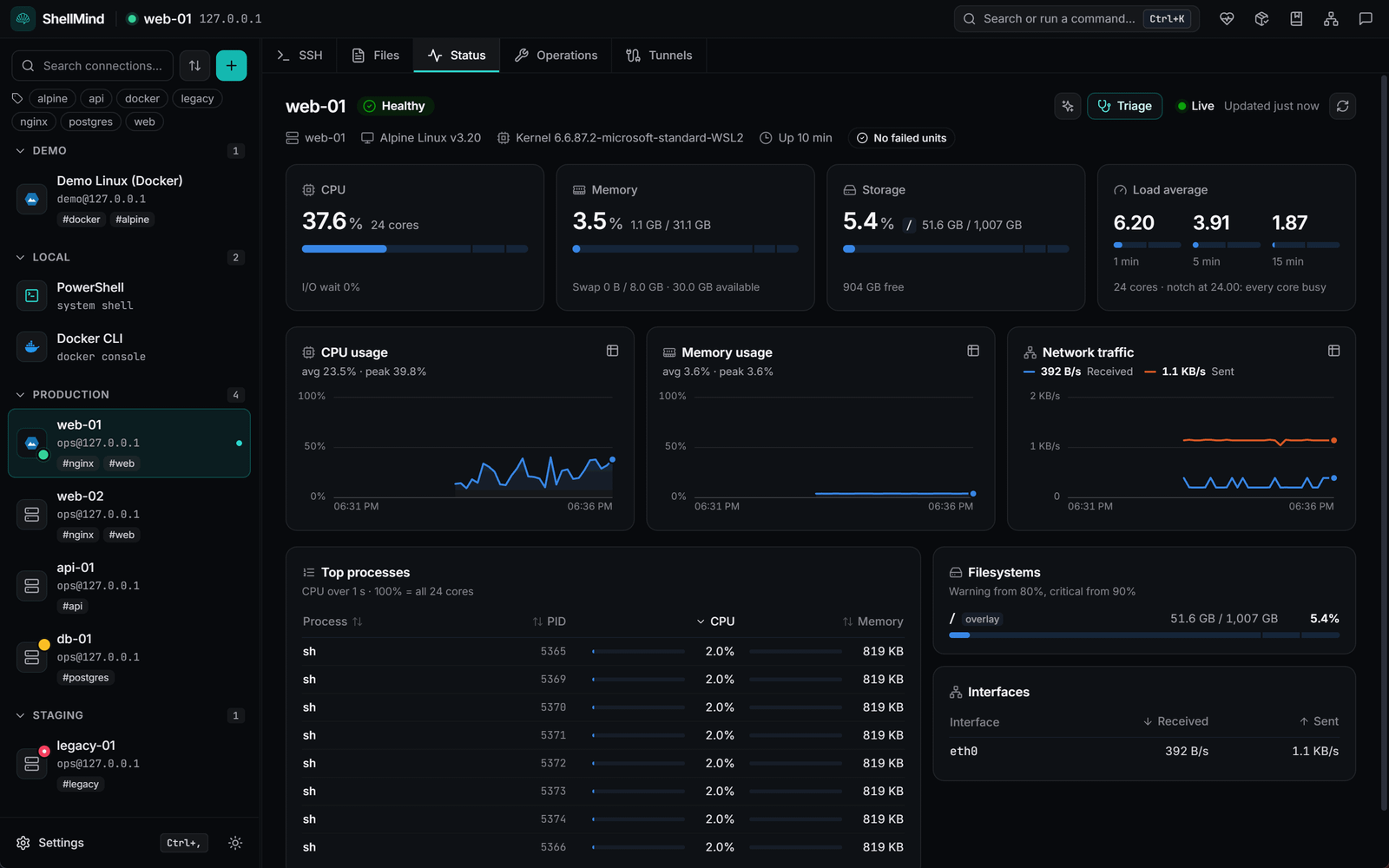
CPU, memory, storage, load per core, history charts, processes, filesystems and failed units, on Linux (busybox included) and Windows.
Patch runs, reboots and disk cleanups are recorded in the audit log, next to every other command ShellMind runs for you.
Websites over FTP, backups in an S3 bucket, configs over SFTP: one file manager for all of them, right next to your servers. No separate transfer client needed.
AWS S3, MinIO, Cloudflare R2 or any S3-compatible endpoint. Browse a bucket like a folder, drop files to upload them, and download straight to disk.
http://.Explicit (AUTH TLS) or implicit FTPS, and plain FTP when there is no other way — with a clear warning that the password travels unencrypted.
ls, cd, cat…), with the AI assistant on hand.Open a config in the remote editor over SFTP, FTP or S3: syntax highlighting, search, and a check that nobody changed it on the server meanwhile.
Arrows and Shift to select, Enter to open, Backspace to go up, F2 to rename, Delete to delete, Ctrl+L to type a path.
Before anything is deleted, ShellMind counts the files, folders and bytes you are about to remove.
PowerShell over OpenSSH, Remote Desktop in a tab, services, Windows Update and disk cleanups — right next to your Linux servers, with the same shortcuts, fleet board and audit log.
A real PowerShell or cmd session over SSH. Multi-line scripts from snippets or the assistant arrive intact, keeping cd and variables.
Dynamic resolution, full screen with keyboard lock, Ctrl+Alt+Del, clipboard both ways and sessions through SSH jump hosts, with certificates pinned on first use. Prefer mstsc? One click opens it.
Start, stop and restart services and see CPU, memory and every fixed drive — also with accounts that aren't administrators — and list pending Windows updates next to your Linux fleet.
Temporary files, the Windows Update cache, the recycle bin and the component store (DISM), each with what it frees before you run it.
No API key, no account, no plan to pick. Ask about whatever is on screen: it reads the output, gathers evidence from the server when you ask for a diagnosis, and proposes the next command — and runs it only when you say so.
Add a MiniMax key and requests go straight to MiniMax. Add a Gemini key for Gemini 3.8 Flash, Gemini 3.5 Flash-Lite and Gemini 4 Argon, sent straight to Google.
Optional — the free models need nothing.
systemctl status postgresql --no-pagerexit 0systemctl restart postgresql queue-workerexit 0systemctl is-active queue-workerexit 0You
queue-worker keeps failing since the deploy.
ShellMind
The worker can't reach PostgreSQL on :5432 — connection refused. Checking the database service.
systemctl status postgresql --no-pager
ShellMind
PostgreSQL is stopped, so the worker had nothing to connect to. Starting it, then the worker:
systemctl restart postgresql queue-worker
ShellMind
Fixed. queue-worker is active again. All three commands are in your audit log.
“Ask AI” on a service, container, pod, selected log lines, the status page or a fleet row collects read-only evidence on the server, shows you every part of it before anything is sent, and answers as cause, evidence and fix.
Recursive deletes, disk formats, database drops, firewall resets, docker system prune, cloud and Kubernetes deletes, curl | sh and more need your confirmation — even behind sudo, bash -c or eval. Auto-Run never runs the fix of a diagnosis on its own.
Private keys, JWTs, cloud and API tokens, Authorization headers, user:pass@ URLs and passwords on command lines are masked before anything reaches a provider, and server output is sent labelled as data, not instructions.
The destructive-command check is best-effort — it is a seatbelt, not a sandbox. Always read what you run.
Each server opens as a workspace: terminal, files, status, operations and tunnels share one connection, and the tabs adapt to what the server can do.
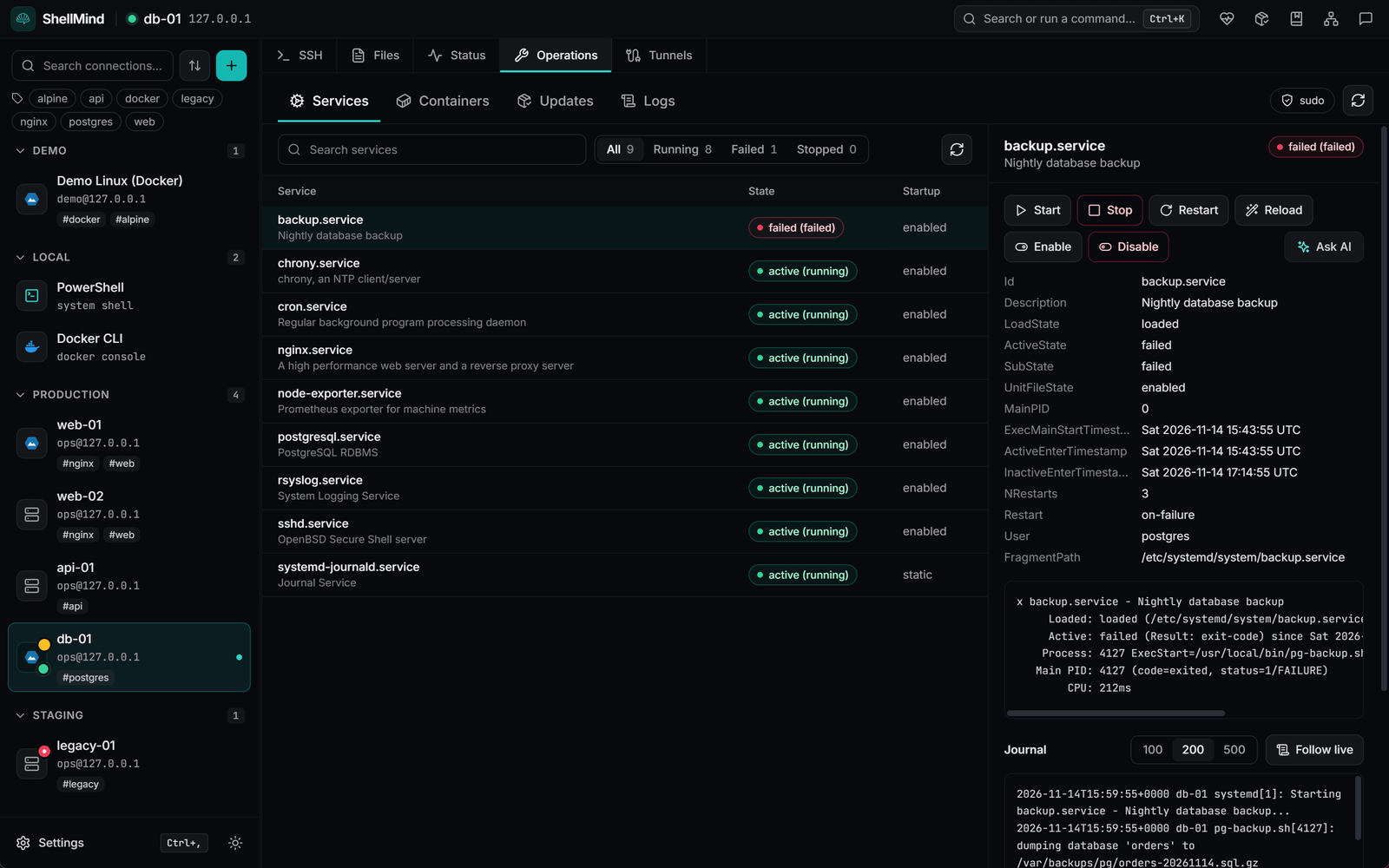
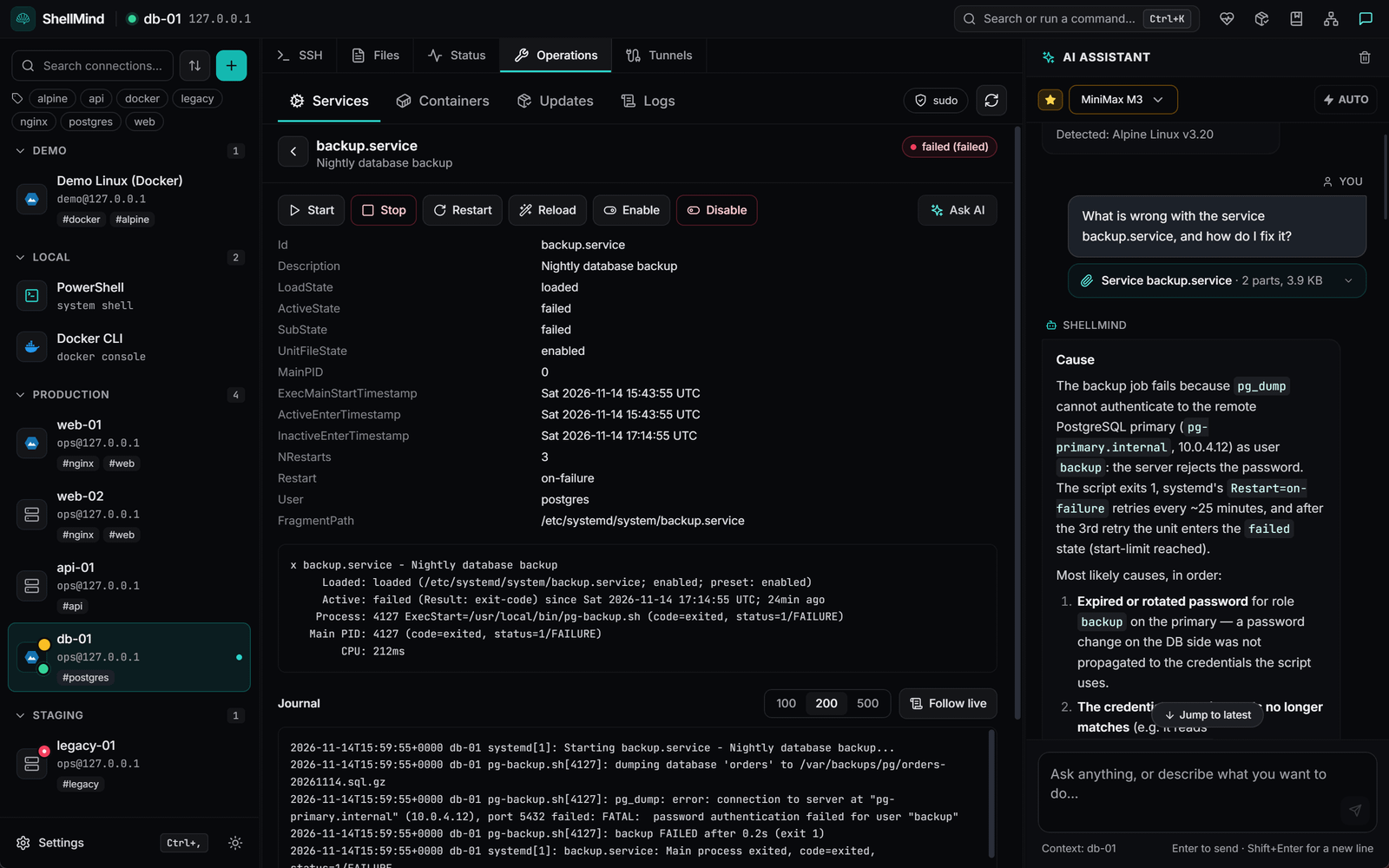
systemd units and Windows services: details, the unit's journal, and start, stop, restart, reload, enable or disable. Actions use sudo -n when the login user may run it without a password.
Docker and Podman with live stats, details, logs, actions and a shell inside. Compose projects up, pulled, restarted or taken down (never with -v), and image prunes with a preview of the space freed.
Contexts, namespaces, workloads (restart, scale), pods with crash loops highlighted, events, nodes (cordon, uncordon), logs and a shell in any container. Every call names its context explicitly.
The journal, any log file, a container or a Compose project, followed live. Select the lines that matter and ask the assistant about them.
| Connection | Terminal | Files | Status | Operations | Tunnels | Kubernetes | RDP | AI |
|---|---|---|---|---|---|---|---|---|
| Linux / UnixSSH + SFTP | Yes | Yes | Yes | Yes | Yes | Yes | No | Yes |
| WindowsOpenSSH + RDP | Yes | Yes | Yes | Yes | Yes | No | Yes | Yes |
| FTP / FTPSexplicit & implicit TLS | Yes | Yes | No | No | No | No | No | Yes |
| S3-compatibleAWS · MinIO · R2 | No | Yes | No | No | No | No | No | No |
| Local CLIshell · az · aws · gcloud · kubectl · docker | Yes | No | No | No | No | Yes | No | Yes |
The Kubernetes tab appears on Linux servers where kubectl is found, and on local kubectl consoles. On FTP the terminal is a minimal FTP shell; the assistant is off for S3 object storage.
Your credentials stay encrypted on the machine that runs ShellMind, the app never phones home, and every command it runs for you is on the record.
Passwords, keys, passphrases and AI keys are stored with AES-256-GCM, the data key protected by your OS keychain. Saved secrets never reach the interface; the RDP password, once per connection, is the one documented exception.
SSH host keys are pinned per host, port and jump route, and RDP certificates the same way. A mismatch stops the connection and shows both fingerprints side by side.
A session token on every request, a loopback-only backend with Host and Origin checks, a strict CSP, and a sandboxed desktop window whose fuses disable NODE_OPTIONS and the inspector.
No analytics, no crash reporting, no update pings. The app only talks to your servers and — if you use AI — to the provider you chose. Fonts are bundled, too.
Every command ShellMind runs or types for you — AI steps, snippets, multi-exec, operations, patch runs, cleanups, broadcast lines, RDP sessions — with search, CSV export and a retention of 30 days to unlimited.
MIT-licensed — read it, build it, audit it. 350+ test files, end-to-end suites against real sshd, Docker, k3s and Windows OpenSSH, and release packages with SHA-256 checksums and signed build provenance.
Where AI traffic goes. AI requests go to the provider you choose: Google with your own Gemini key, or the included MiniMax models. They carry your message, recent history, masked terminal output, any evidence you attached, and the server's name, OS and shell; saved credentials are never sent. Details in the AI data policy.
Add your first server in a few clicks — or import your ~/.ssh/config — then split it, broadcast to it, or let the assistant take the first look.
Upgrading from an earlier version? Almost everything was rewritten since 0.3. The highlights:
.deb), with checksums and build provenance.~/.ssh/config, ProxyJump chains included, and export your setup as JSON without secrets.Installers for Windows, macOS and Linux — no account, no license key, AI included. Or build it from source and host the web app yourself.
~/.ssh/config or add a server; your keys and agent work as they are.Windows 10 or 11, x64. A standard installer.
Not code-signed yet: if SmartScreen warns, choose More info, then Run anyway.
Apple silicon and Intel. A disk image, or a .zip from the release page.
Signed ad hoc, not notarized: the first time, right-click ShellMind in Applications and choose Open.
x64 with glibc 2.31 or later: Debian 11, Ubuntu 20.04, Fedora, RHEL 9 and newer.
Install the .deb with sudo apt install ./shellmind_*.deb; on Ubuntu 24.04 and later prefer it over the AppImage.
Needs Git and Node.js 24.15 or later (or 22.22.2 or later in the 22 line).
$ git clone https://github.com/Luisbh-dev/shellmind.git
$ cd shellmind
$ npm ci
$ npm start
npm run dist packages the installer for the system you run it on; npm run dist:linux builds the Linux packages in a Debian 11 container.
Run ShellMind on a server you control and use it from a browser. Keep it on loopback behind a reverse proxy with TLS, and sign in with the access token.
$ npm ci
$ npm run build
$ npm run serve   # 127.0.0.1:3001
Anyone with the token controls every saved server: treat it like a root password and serve ShellMind only over HTTPS.
Yes. ShellMind is MIT-licensed, and the AI assistant is included at no cost: MiniMax M3 works out of the box with no API key. If you prefer Gemini, bring your own key and pay Google directly.
Yes. ShellMind is the all-in-one workspace for sysadmins and DevOps. It does everything you expect from an SSH client — tabs and split panes, broadcast input, your keys, ssh-agent or Pageant, ProxyJump chains, port forwarding and SFTP — and replaces the tools around it too: fleet health, a patch center, Windows and Remote Desktop, and a free AI that reads your terminal.
Switching takes one click: import your ~/.ssh/config and your hosts, keys and jump hosts are there. The only gaps today are remote and dynamic port forwarding (-R, -D) and X11 forwarding.
No. The patch center reads what the package managers already know and only refreshes the package lists when you ask. Updates are installed only in a patch run you start and confirm, with a canary, a failure limit and an optional reboot. It needs root or passwordless sudo -n and never types a sudo password. Windows Update is listed, never installed.
No. There is nothing to sign up for, and the AI assistant works out of the box with MiniMax. Add a Gemini or MiniMax key in Settings only if you want to use your own.
The desktop app runs on Windows 10 and 11 (x64), macOS on Apple silicon and Intel, and Linux x64 with glibc 2.31 or later (AppImage or .deb). You can also host the web app on a server and use it from a browser. As for what it manages: Linux and Unix over SSH (busybox systems included), Windows over OpenSSH and RDP, FTP/FTPS, S3-compatible storage, and local shells and CLIs.
There is no telemetry, analytics, crash reporting or update check. The app connects to the servers you configure — the background fleet checks included — and to nothing else, unless you use the AI assistant.
When you chat, the provider you picked receives your message, the conversation, recent terminal and command output (with known secret formats masked), any evidence you attached, and the server's name, OS and shell. Saved credentials are never sent. See the AI data policy.
Only if you turn Auto-Run on. Even then it types at most five steps, waits for the shell prompt before each one, never runs a destructive command or the fix of a diagnosis without your approval, and turns off when you switch servers or close the chat. The check is best-effort, so keep reading what runs.
On your machine, in a local SQLite database. Passwords, private keys, passphrases, S3 secrets and API keys are encrypted with AES-256-GCM; on desktop the data key is protected by your OS keychain, so back it up together with the database. Nothing is synced to a cloud.
Password, private key (with passphrase) and keyboard-interactive prompts, and the SSH agent: SSH_AUTH_SOCK, the Windows OpenSSH agent pipe and Pageant. Agent forwarding can be turned on per server and is off by default. Identities let many servers share one set of credentials, and jump hosts chain through ProxyJump.
Yes: the packages are not code-signed yet. On Windows, SmartScreen asks you to choose More info, then Run anyway; on macOS, right-click the app and choose Open. Download only from this site or the GitHub releases page, and compare the file with the release's SHA256SUMS.txt, or check it with gh attestation verify.
Open an issue on GitHub. Bug reports from real environments, workflow pain points and pull requests are all welcome.
Free for Windows, macOS and Linux. Import your hosts, split a terminal, ask the AI — no account, no API key, no Pro tier.
ShellMind is built in the open, and there are many ways to move it forward. Contribute code, test builds, report friction, improve docs, propose integrations, or simply share what hurts in real operations work.
You do not need to be a developer to help.